Managing your SSL certificates, billing, and support requests is easy with the BuySSL Client Area. This guide provides a step-by-step walk-through on how to create a new account, log in, and manage your account details effectively.
1. How to Create a New Account on BuySSL
If you are a new customer, follow these steps to register an account before or during your first purchase.
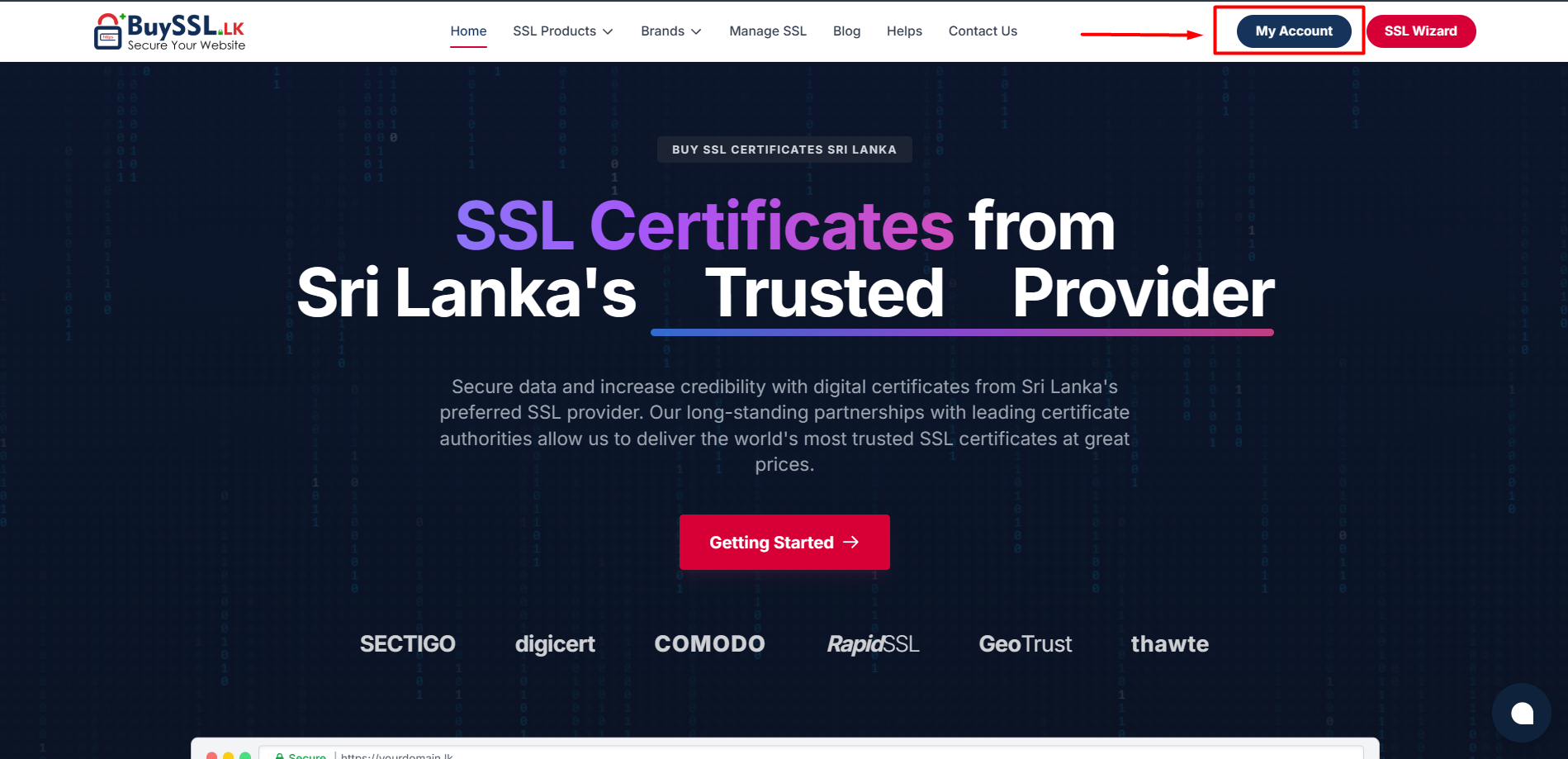
Step 1: Visit Official BuySSL website
- Open your web browser and go to the official BuySSL Website:
- URL: https://buyssl.lk
- Click on the My Account button located at the top right of the page.
Step 2: Enter Your Personal & Business Details
Fill in the required information in the registration form:
- Personal Information: Enter your First Name, Last Name, Email Address, and Phone Number.
- Billing Address: Provide your Street Address, City, State/Region, Postcode, and Country (e.g., Sri Lanka).
- Company Details (Optional): Enter your Company Name and Tax/VAT ID if purchasing on behalf of a business.
.png)
Step 3: Account Security & Password
- Create a strong, unique password for your account.
- Re-enter the password to confirm.
.png)
Step 4: Complete Registration
- Review and accept the Terms of Service.
- Complete any CAPTCHA security verification if prompted.
- Click the Register button to finalize your account creation.
Step 5: Verify Your Account (Phone & Email Verification)
After completing the registration form, you must verify your contact details to activate your account features and secure your profile.
1. Email Verification:
Check your email inbox for a verification email sent from BuySSL. Click on the verification OTP Code provided to confirm your email address.
2. Phone Verification:
- You will be redirected to the Account Verification page automatically.
- Review your mobile number displayed under Phone Verification.
- Click the Start Verification Process button to send a one-time verification code (OTP) to your phone.
- Once received, enter the verification code in the provided box and click Verify (or select "I have Received The code").
Note: Verifying both your phone number and email address helps prevent fraud, ensures you receive critical SSL renewal notices, and secures your account against unauthorized access.
.png)
2. How to Log In to Your Account
Once your account is created, you can log in at any time to manage your services.
- Go to https://my.buyssl.lk/index.php?rp=/login
- Enter your registered Email Address and Password.
- Click the Login button.
Tip: If you forget your password, click on the "Forgot Password?" link below the login box to receive a password reset link in your email.
3. Navigating the Client Area Dashboard
After logging in, you will be directed to the main Client Area Dashboard. From here, you can access all features:
- Services: View active, pending, or expired SSL certificates.
- Billing: View unpaid invoices, payment history, and download PDF receipts.
- Support: You can access the following helpful support tools.
- Open Ticket: Open a new support ticket or view replies from the BuySSL support team.
.png)
4. How to Update Profile Details & Change Password
It is important to keep your contact information up to date so you do not miss SSL renewal notifications.
Updating Profile Information:
- Click on "Hello, [Your Name]!" in the top right corner.
- Select Edit Account Details.
- Update your address, phone number, or contact email.
- Click Save Changes.
Changing Your Password:
- Click on "Hello, [Your Name]!" in the top right corner.
- Go to Change Password.
- Enter your Current Password, then type and confirm your New Password.
- Click Save Changes.
Enhancing Account Security (Two-Factor Authentication)
- To add an extra layer of security to your BuySSL account:
- Click on Security Settings from the user account menu.
- Click Enable Two-Factor Authentication.
- Scan the QR code using an authenticator app (such as Google Authenticator or Authy).
- Enter the generated 6-digit verification code to confirm.
.png)
Need Further Assistance?
If you encounter any issues creating or accessing your account, please reach out to our team:
Support Portal: Submit a ticket inside https://my.buyssl.lk/submitticket.php
Website: https://www.buyssl.lk/contact-us